Remember the AWP Epic battle earlier? Now your shots seem to be connected slower than dial-up on windy days. No one wants their skills to be overshadowed by frame rates such as slide shows. This guide is your weapon against lag, a battle plan to change your CS2 experience “Retro Charm” to “Smooth operator.”
Takeaways key
- System Optimization: Match or exceed the recommended requirements CS2, close the background application, and consider increasing hardware such as faster RAM
- Game Settings: Balance resolution, aspects ratio, and graphic option while deactivating vertical synchronization to reduce lag input
- Advanced options: Use the NVIDIA/AMD Special Launching and Settings option to perfect your performance for your special hardware settings
Why Your FPS Low
💡
Common causes of low FPS in CS2
- Drivers who are outdated – Graphic card drivers require routine updates for optimal performance
- Resource hungry background application – Other programs that consume CPU/RAM resources
- Suboptimal game settings – Settings are too high for your hardware capabilities
- Limitations of hardware – Components that do not meet the game requirements
- Latest game updates – New patches sometimes introduce performance problems
Debugging is all about backwards, understanding what might cause your game to run slower than Internet Explorer. Is this an update? Is this just a matter of setting? Or is there something more for this problem? That is the first step to find out the low CS2 FPS problem.
1
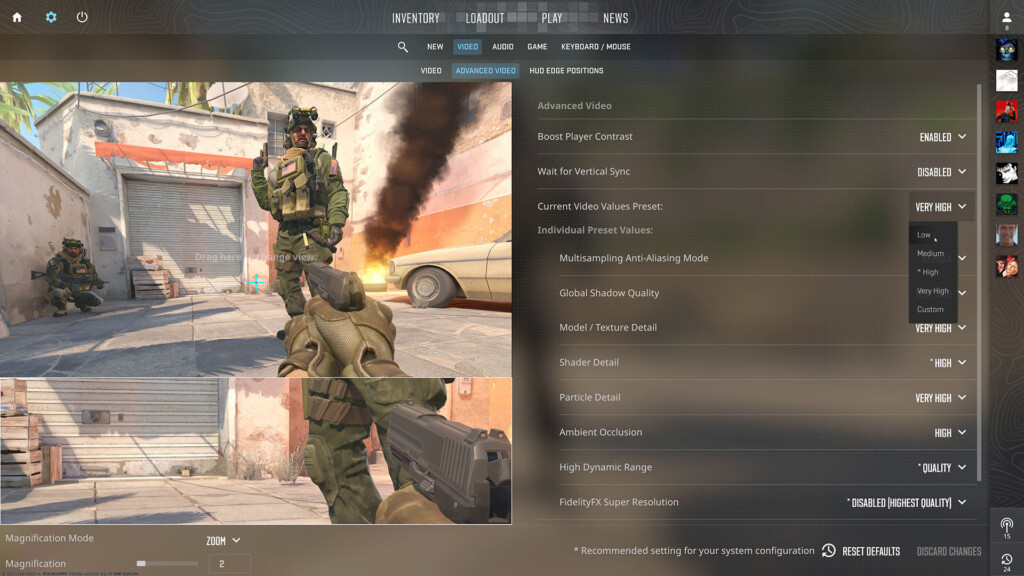
Find a perfect balance between visual and performance by adjusting this key settings for better CS2 performance:
Shadow
Lower than high to medium/low for significant FPS profits. The shadow is very dense resources but less critical for competitive games.
Anti-Alasing (AA)
Try MSAA 2x or 4x instead of higher value, or fully deactivated to improve maximum performance.
Texture quality
Medium texture offers a good balance between visual clarity and performance, especially in GPUs with limited VRAM.
Adjust the settings one by one and pay attention to FPS changes with each modification to identify which settings affect your system most.
2
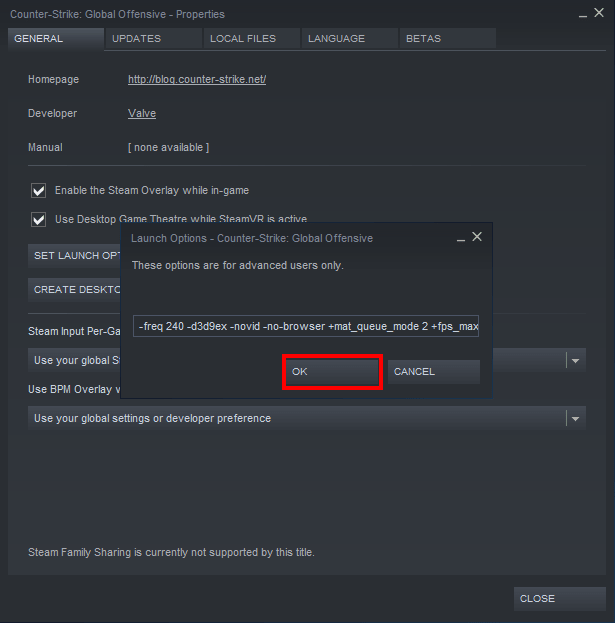
Add this launch option through Steam to Fine-Tune CS2 performance:
Access launch option by right clicking CS2 in Steam → Properties → General → Launching option.
3
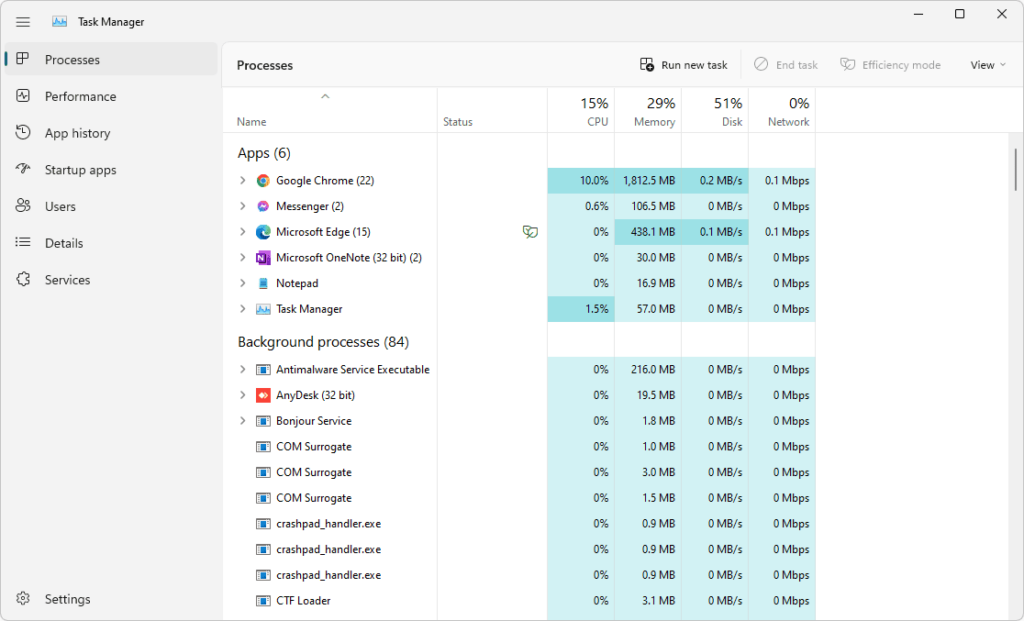
Background Application Secretly Stealing Resources from CS2. This is the way to turn it off:
- Press
Ctrl + Shift + Escto open a task manager - Sort based on CPU or the use of memory to identify the resource pigs
- Right -click the unnecessary program and select “Final Project”
- Focus on browsers, media applications, and download managers
Use Windows Startup Manager to prevent the Heavy Resources application to be launched automatically when you boot your PC.
4
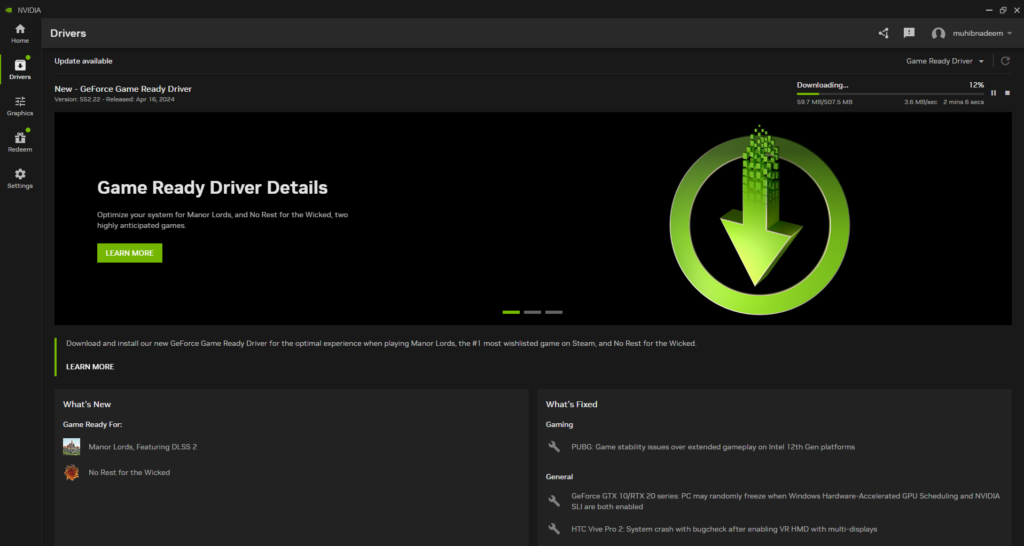
Graphic drivers who are outdated can be very bottled by CS2 performance. Update yours with:
- Identification of your GPU Model in Display Settings → Advanced Display → Adapter Property
- Visit the manufacturer’s website (Nvidia, AMD, Intel)
- Download and install the latest drivers for your specific models
- Select “Clean Installation” to delete the remaining files
For NVIDIA users, optimize your CS2 profile in the NVIDIA control panel for additional FPS benefits.
5
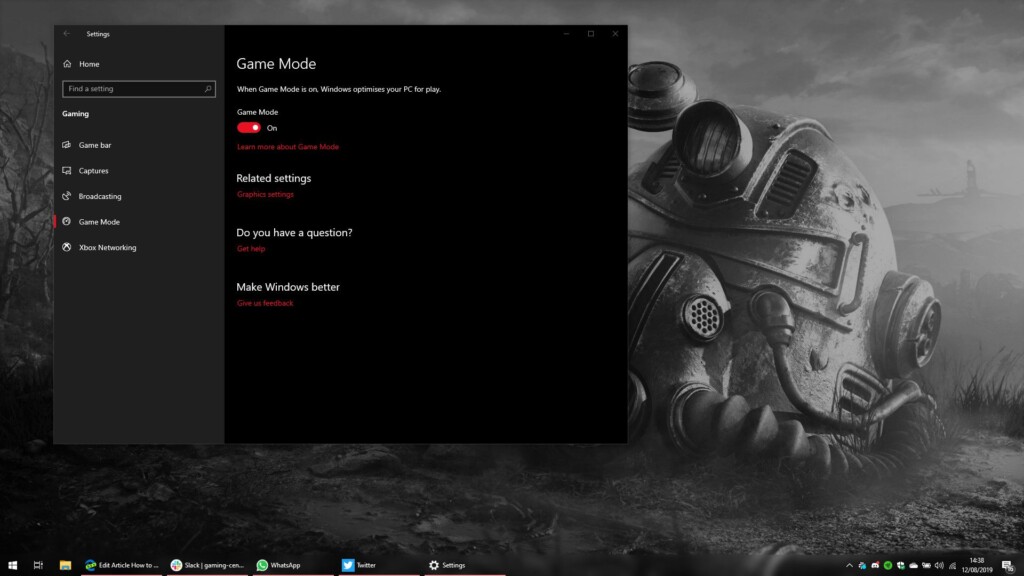
Windows has a hidden setting that can prioritize game performance:
- Game mode: Search “game mode” in windows search → not “on”
- Visual effect: Right -click this PC → Properties → Advanced System Settings → Advanced Tab → Performance → Settings → Select “Customize the Best Performance”
- Power Power Package: Control panel → power option → select “high performance”
Disable the Windows Game Bar and DVR game features if you don’t use it, because they consume resources when walking in the background.
6
FSR makes games in lower resolutions then increase them intelligently, increase FPS with minimal loss of visual quality:
- Launch CS2 and Open Settings → Video → Advanced Video
- Find “Fidelityfx Super Resolution” and activate
- Select Prets based on your preferences:
- Quality: Boost FPS Minor with Very Good Visual
- Balanced: Good middle middle option
- Show: The maximum FPS advantage with several visual compromise
FSR works with any graphics card – If you play with a stretch resolution on CS2, try FSR for better performance.
7
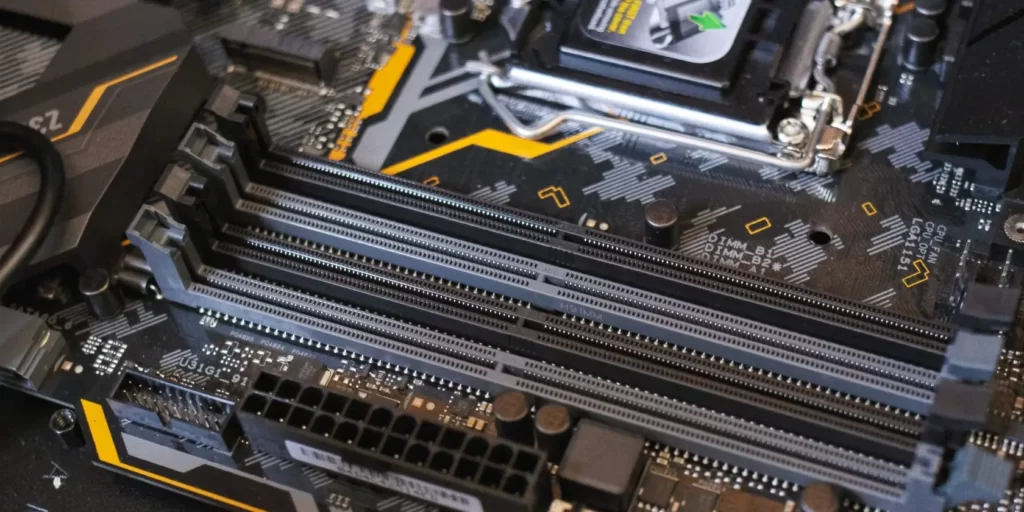
If the software tweak is not enough, consider increasing this strategic hardware to meet the requirements of the CS2 system:
- RAM: Increase to 16GB DDR4 or better for smoother gameplay
- SSD: Moving CS2 to SSD reduces loading time and texture streaming stutter
- GPU: Mid-range cards like GTX 1660 or RX 5600 XT can handle CS2 in high settings
- CPU: CS2 gets great benefits from the CPU with a high single core performance
Monitor the use of resources with task manager to identify the congestion of your system before investing in improvement.
8
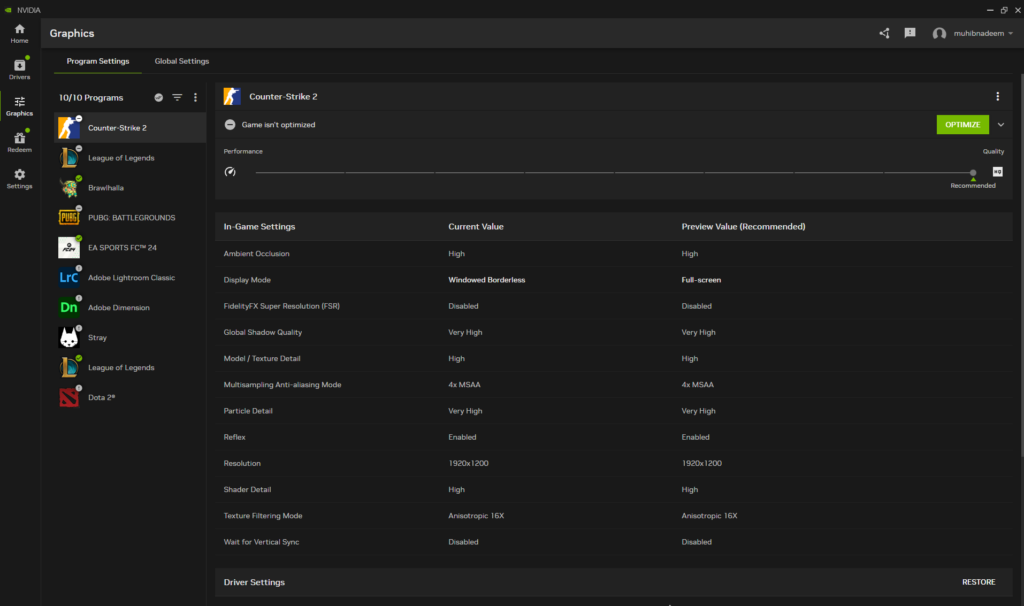
Nvidia GPU users can improve performance through NVIDIA control panels:
- Right -click the desktop → nvidia control panel
- Go to 3D settings → program settings
- Add CS2 and configure this setting:
- Power Management: Prefer maximum performance
- QUALITY QUALITY OF TEXTURE FIRSTURE: Show
- Low latency mode: Ultra
- Bonded Optimization: On
NVIDIA reflex technology can significantly reduce lag input in CS2-allowing it in games for competitive advantage.
Is your game file damaged?
If you have tried the optimization above but still experienced bad performance or random crash, your game file might be damaged. Verification of your game file integrity via steam:
- Right -click CS2 in your Steam Library
- Select Property → Local Files
- Click “Verification of Game File Integrity”
- Wait for the process to complete and repair damaged files
If your game froze or crashes when trying to optimize performance, see our special problem solving guides such as CS2 random freezing and how to fix crash crote-strike 2.
Summary
Fast recap
- Optimizing game settings: Adjust the shadows, anti-aliasing, and the quality of texture for the best visual performance ratio
- Tweak System: Close the background application, update the driver, and activate the Windows game mode
- Advanced options: Use the GPU Special Launch and Settings for further optimization
- Consider FSR: Activate the Super FidelityFX AMD resolution for a significant increase in FPS with a minimum visual impact
- Strategic Increased: If possible, increase RAM, turn to SSD, or invest in a better GPU/CPU
We have discussed many foundations in this post, from optimizing the tweak system and settings in the game to increasing hardware and solving FPS problems. It is clear that optimizing your CS2 experience involves a combination of software tweaks, increasing hardware, and a little trial. But with the insights and tips shared in this post, you are now equipped to bring your CS2 gameplay to the next level.
Questions that are often asked
To increase your FPS on CS2, optimize system tweaks, adjust settings in games and videos, increase hardware, use technology like Fidelityfx Super Resolution, and minimize lag input. These steps can help improve your game play experience.
The recommended system requirements for CS2 are Windows 10, Intel Core i5 750 or higher CPU, minimum 8GB RAM, compatible video cards with DirectX 11 with at least 1 GB of Vram, DirectX version 11, and available storage space 85 GB.
FidelityFX Super Resolution increases FPS in CS2 by providing lower resolution and improving images to improve quality without significant losses in visual loyalty, producing better performance.
NVIDIA Low latency reflexes reduce lag input by minimizing delays between your actions and their execution in the game, which leads to game experiences that are faster and more responsive.
To solve general FPS problems on CS2, adjust your launch option and make sure your driver and patches of your game to overcome system congestion and software conflict. These steps can help improve your game play experience.
Game Online
Motivation
News
Pendidikan
Pendidikan
Download Anime
Gaming Hub
A gaming hub can refer to a central platform or space dedicated to gaming, where players can access games, interact with other gamers, and enjoy related content.