We have released an update to the SQL Developer Extension for VS Code, version 25.4.1 [changeLog].
When you download the new extension update, you may experience problems with our MCP Server. Let’s discuss what happens and how you can avoid it.
You have two main options to make our SQLcl MCP server available to the AI Agent in VS Code.
- Download and configure SQLcl
- Install the SQL Developer extension from VS Code Marketplace
While you can configure both, you should only enable one of them at any given time. No need to be confused about WHICH MCP server Agent you want to use for your database work.
The simplest path, using our SQL Developer Extension for VS Code
If you are using Github Copilot – ‘Chat’ dialog in VS Code, here is EVERYTHING you need to do. No additional configuration required.
If you are using another Agent in VS Code, for example Cline, then you need to do some configuration work.
We made it ‘easy’, just open the Command Palette and search for ‘Cline’.
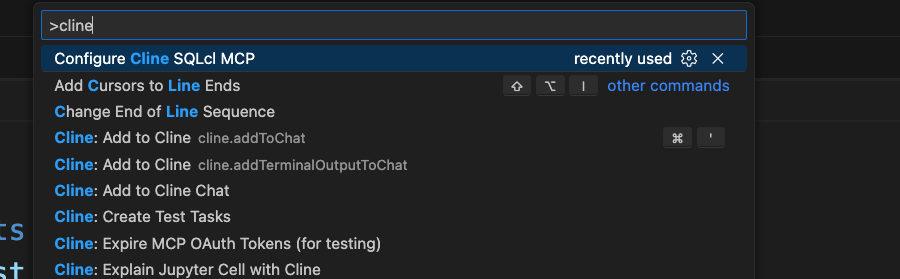
By doing this, we will insert or update this entry in Cline’s MCP JSON configuration file.
"SQLcl - SQL Developer": {
      "timeout": 60,
      "type": "stdio",
      "command": "/Users/thatjeffsmith/.vscode/extensions/oracle.sql-developer-25.4.1-darwin-x64/dbtools/jdk/Contents/Home/bin/java",
      "args": [
        "-Djava.awt.headless=true",
        "-Djava.net.useSystemProxies=true",
        "-Duser.language=en",
        "-p",
        "/Users/thatjeffsmith/.vscode/extensions/oracle.sql-developer-25.4.1-darwin-x64/dbtools/launch/:/Users/thatjeffsmith/.vscode/extensions/oracle.sql-developer-25.4.1-darwin-x64/dbtools/sqlcl/launch/",
        "--add-modules",
        "ALL-DEFAULT",
        "-m",
        "com.oracle.dbtools.launch",
        "sql",
        "-mcp",
        "-tnsadmin",
        "/Users/thatjeffsmith",
        "@/Users/thatjeffsmith/Documents/login.sql"
      ]
}Some notes here:
- this tells the AI Agent, the MCP Server can be found within VS Code’s SQL Developer extension
- This location is version dependent
- this means, as the SQL Developer extension version changes, you will need to update this file – just enable the cmd palette operation again, and we will update this entry for you
If you see Cline or another Agent ‘stopped working’, it’s most likely because you’ve updated the MCP Server and can’t find it anymore.
If you install a stand-alone copy of SQLcl, and you configure it, then it will continue to work as long as it doesn’t ‘move’ or ‘lose’.
We’ll update our docs to make sure this is clear to end users, so you’ll spend less time wondering why your MCP Server stopped working!
But Jeff, I’m not running Klein…
Maybe you use the Claude extension for VS Code? It (like all other Agents) uses json configuration files to manage their MCP Server. Just call the ‘Cline’ command, and copy/paste the JSON entry for SQLcl, and paste it into Claude’s.
A quick note about our MCP Tool, what’s ‘new’?
To run queries/code on your database, we now have:

We previously overloaded the run-sql schema for Agents, so they could call it two different ways, synchronous or asynchronous, but certain Agents didn’t do it well. So we have shared this completely as a new tool.
Yes, you can ask your Agent to run some database code in the background! If you don’t do this and it takes more than 60 seconds to respond, your Agent will ‘time out’ the MCP tool request.
Berita Terkini
Berita Terbaru
Daftar Terbaru
News
Berita Terbaru
Flash News
RuangJP
Pemilu
Berita Terkini
Prediksi Bola
Togel Deposit Pulsa
Technology
Otomotif
Berita Terbaru
Daftar Judi Slot Online Terpercaya
Slot yang lagi gacor
Teknologi
Berita terkini
Berita Pemilu
Berita Teknologi
Hiburan
master Slote
Berita Terkini
Pendidikan
Resep
Jasa Backlink
One Piece Terbaru